How to organize family photos, and why one system sticks
How to organize family photos comes down to one rule: every photo lives in one library, sorted by year and month, with two more copies kept somewhere else.

In this guide
How to organize family photos comes down to one rule: every photo lives in one library, sorted by year and month, with two more copies kept somewhere else.
Move everything into one library, set up two backups, and set aside a short session each month to delete what you won't miss. Printed photos can wait in a safe box until the digital side is under control.
Start with the phone
Begin with the phones in the house, because that is where new photos arrive every day. A box of old prints is not getting any bigger, while a camera roll grows with every birthday and soccer game.
Before you move anything, write down every place family photos live right now. That usually means each adult's phone, an old phone in a kitchen drawer, a laptop, a cloud account or two, a USB stick from a school event, and the prints. The list becomes your checklist for the next step, and crossing off each source as it gets copied is the only progress tracker the project needs.
Once the digital library is in order, scanning the prints becomes its own project, with its own costs and choices.
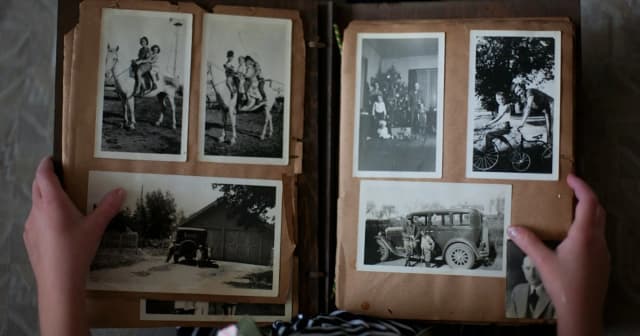
While the phones come first, the prints still need a safe place to wait. The Library of Congress says a relatively dry, cool, and stable environment is best for photographs: 30% to 50% relative humidity and 70°F or below. If an attic or garage runs above 70°F, it misses the temperature part of that guidance. A closet shelf inside the heated and cooled part of the house is a more likely fit.
The Library of Congress also recommends storing all photographs in photo-safe boxes. The same page says to avoid albums with colored, "magnetic," or sticky self-adhesive pages, and to handle prints by their edges or housing with clean hands or clean nitrile gloves.

Pick one library and move everything into it
Choose one photo library as the place every family photo ends up, then copy everything from your list into it. A single library gives you one place to search and one place to back up.
The library can be iCloud Photos, Google Photos, a folder on a computer, or another service. It needs room for the whole collection, access for every adult who takes photos, and a way to export everything later if you switch. The phones the family already carries are a reasonable starting point. A household where every adult uses an iPhone starts from a different place than one with a mix of iPhone and Android.
Consolidating goes more smoothly in a set order. Start with the phone that holds the most photos, then the second phone, then laptops and retired devices, then shared albums and stray drives. After each source is copied, open the library and spot-check a few dates from that device before deleting anything from the original.
Duplicates will show up along the way. Leave them for now; the monthly cull can clear them a few at a time.
Shared family albums need one extra pass. Grandparents and other relatives may post photos to a shared album that never reaches your own library. Save the ones you want into the main library so your copy does not depend on someone else's album staying online.
Sort by year and month, then by event
Use year and month as the backbone. Events and people sit on top of that structure as albums.
In an app library, most of the date sorting is already done. Apple's Photos app on Mac, for example, has a Years view for jumping to a specific year and a Months view that groups photos by the days or locations they were taken. The work left for you is making albums for the events you will look for again, such as the first day of kindergarten, a move, or a grandparent's 80th birthday.
In a folder library on a computer, you build the same structure by hand. Make one folder per year and one subfolder per month, and name the months with numbers so they sort in order: a folder named 2025 holds 2025-01, 2025-02, and so on. When a month had an event worth finding, add it after the number, as in 2025-07 lake trip.
Avoid using people as the main way to organize your library. In a folder library, a photo of several cousins would need a copy in each cousin's folder. Let the face grouping in the apps handle people instead (the last section covers what Apple and Google offer).
If you are starting with many years of photos, do not sort backward from today in one push. Set up the structure and keep the current year tidy. When you have a few minutes left in a monthly cull session, work back one older year at a time.
Back up with the 3-2-1 rule
Keep three copies of the library, on two different types of storage, with one copy offsite. That is the 3-2-1 rule as laid out in "Data Backup Options," a US-CERT paper now hosted on CISA's website.
Each number has a job. Three copies means the library itself plus two backups. Two media types mean the copies are not all on the same kind of storage, which the paper says protects against different types of hazards. One offsite means at least one copy lives somewhere other than your house.
CISA's guide to protecting data on personal devices gives the same direction in fewer words: back up your data to a secure external hard drive or a properly vetted cloud service. One setup that fits the rule is a cloud library as copy one and an external hard drive at home as copy two. A second drive kept at a relative's house or a workplace is copy three.
Syncing and backing up are different things. Apple's iCloud Photos page says that when you delete photos and videos on one device, they are deleted everywhere you use iCloud Photos. The same page says iCloud Photos items are not duplicated in your iCloud backup and tells users to keep backup copies of the library.
An external drive only counts as a copy if it gets updated. Plug it in on the same day as the monthly cull and copy over the new month. No arrangement makes photos permanent.
What does a 15-minute monthly cull look like?
Fifteen minutes on the same day each month, spent deleting the obvious misses, marking favorites, and refreshing the backup. That routine keeps one month of photos from turning into a year of photos nobody wants to face. The schedule and the minutes in the table are this guide's own suggestion, not a figure from any of the sources listed below.
| Step | Minutes | What to do |
|---|---|---|
| Clear the junk | 3 | Delete screenshots, receipts, parking-spot photos, and blurry shots from the past month |
| Thin the bursts | 5 | In each run of near-identical shots, keep one or two and delete the rest |
| Mark favorites | 4 | Heart or star the photos you would print, frame, or send to family |
| Add albums | 1 | Drop the month's event photos into an album, if there was an event |
| Refresh the backup | 2 | Copy the month to the external drive and confirm the cloud upload is current |
Pick a day that already repeats, like the first Sunday of the month or the evening a recurring bill gets paid. Put it on the family calendar with a reminder, and decide whether one adult owns it or two adults trade months.
Do the deleting from one device. In iCloud Photos, deleting a photo on one phone removes it from every device using the same library, so two people culling at once can remove a photo the other one wanted to keep. If two adults share the job, one deletes and the other only marks favorites.
Favorites pay off later. When it is time for a holiday card, a photo book, or a slideshow at a graduation party, the favorites album is already the shortlist. Holiday cards are the first fall deadline when that shortlist saves you an evening of scrolling, and the timing guide works backward from mailing dates.

Once a year, consider a longer session, for example at the end of the school year or over winter break. Scroll the year's favorites, fix any albums that got skipped, and check that the offsite drive holds the newest photos.
What the phone already does for you
Apple Photos on Mac lets you browse by year and month, and Google Photos can save photos and videos to your Google Account when Backup is on. Deciding what to keep and where the second and third copies live is still up to you.
| Feature | Apple Photos | Google Photos | Source (as of date) |
|---|---|---|---|
| Browse by date | Years and Months views (Photos on Mac) | Not covered in the help pages checked | Apple Photos User Guide, Oct 2026 |
| People and pets | People & Pets collection sorts people, dogs, and cats (iPhone, iOS 27 guide) | Face groups; Google says the feature isn't available in all regions, domains, or account types | Apple iPhone User Guide; Google Photos Help, Oct 2026 |
| Upload to the cloud | iCloud Photos keeps the library in sync across devices | Backup saves photos and videos to your Google Account when turned on | Apple Support; Google Photos Help, Oct 2026 |
| Deleting a photo | Deleted everywhere iCloud Photos is used | Not covered in the help pages checked | Apple Support, Oct 2026 |
| Backup advice | Keep backup copies of your library | Not covered in the help pages checked | Apple Support, Oct 2026 |
Apple's iPhone User Guide for iOS 27 says the Photos app sorts photos and videos of people, dogs, and cats into the People & Pets collection. Google's help page on face groups says the feature isn't available in all geographic regions, domains, or account types.
Google Photos can save photos and videos to your Google Account automatically once Backup is turned on. Check that setting on every adult's phone, because a phone with Backup off is not sending its photos to the account. On iPhone, the same check is whether iCloud Photos is turned on for each device that should feed the library.
Automatic upload does not choose favorites, and by Apple's own description a synced library is not a substitute for backup copies. Features and their names change with software updates; the details in this section reflect Apple's and Google's help pages as of October 2026.
The first move is small: open the photo settings on your own phone and see where its photos are going right now.
Frequently asked questions
How do I organize many years of photos?
How do you declutter family photos?
What is a good way to store family photos?
How do I organize hundreds of family photos?
Sources
All sources checked on October 20, 2026.
- Library of Congress "Care, Handling, and Storage of Photographs" (Library of Congress, no date listed) https://www.loc.gov/preservation/care/photo.html
- "How to Protect the Data that is Stored on Your Devices" (CISA, no date listed) https://www.cisa.gov/resources-tools/training/how-protect-data-stored-your-devices
- "Data Backup Options" by Paul Ruggiero and Matthew A. Heckathorn (US-CERT, hosted by CISA, no date listed) https://www.cisa.gov/sites/default/files/publications/data_backup_options.pdf#page=1
- "Find photos and videos by date on Mac," Photos User Guide (Apple, no date listed) https://support.apple.com/guide/photos/find-photos-and-videos-by-date-pht56eafa987/mac
- "Find and name people and pets in Photos on iPhone," iPhone User Guide for iOS 27 (Apple, 2026) https://support.apple.com/en-mide/guide/iphone/iph9c7ee918c/27/ios/27
- "Set up and use iCloud Photos" (Apple Support, no date listed) https://support.apple.com/en-us/108782
- "Back up photos & videos," Google Photos Help (Google, no date listed) https://support.google.com/photos/answer/6193313?hl=en
- "Set up & manage your face groups," Google Photos Help (Google, no date listed) https://support.google.com/photos/answer/6128838?hl=en-en


